

Sharing files and folders efficiently is essential in today’s digital world—whether you’re collaborating with a team, sending large files, or backing up important data. If you’re using Dropbox, you already have one of the most powerful cloud storage tools available.
This guide walks you through exactly how to share your Dropbox folder, including permissions, best practices, and common mistakes to avoid.
Table of Contents
What is Dropbox Folder Sharing?
Dropbox folder sharing is a feature that allows you to give other people access to a specific folder in your cloud storage. Instead of sending files individually, you can share an entire folder so others can view, download, or even edit its contents—depending on the permissions you set.
Dropbox folder sharing means:
Giving selected users or anyone with a link access to a folder stored in your Dropbox account.
How It Works
When you share a folder in Dropbox:
- You select the folder you want to share
- You invite people via email or generate a shareable link
- You assign permissions:
- View only (can see/download files)
- Edit access (can add, delete, or modify files)
- The recipient gets access instantly
All changes made in the folder are automatically synced for everyone who has access.
Types of Folder Sharing
1. Email-Based Sharing
- You invite specific people using their email addresses
- Access is restricted to those users only
- More secure and controlled
2. Link Sharing
- You generate a shareable link
- Anyone with the link can access (depending on settings)
- Easier for quick sharing
Step-by-Step: How To Share Your Dropbox Folder
Method 1: Share via Dropbox Website (Desktop)
- Log in to your Dropbox account
- Navigate to the folder you want to share
- Click the “Share” button next to the folder
- Enter the recipient’s email address
- Choose permission:
- Can view
- Can edit
- Click Send
Alternative: Click “Copy Link” and share it manually.
Method 2: Share Using Dropbox Mobile App
- Open the Dropbox app
- Tap the folder
- Tap the three dots (⋮)
- Select Share
- Add email or copy link
- Set permissions and send
Method 3: Share via Dropbox Desktop App (PC/Mac)
- Open your Dropbox folder on your computer
- Right-click the folder
- Click Share with Dropbox
- Add emails or copy link
- Choose permissions
Understanding Dropbox Permissions
| Permission Type | What It Allows |
| View Only | Can see and download files |
| Edit Access | Can add, delete, and modify files |
| Comment | Can comment but not edit |
Pro Tip: Always assign the minimum required access for security.
How To Manage Shared Folder Settings
After sharing, you can:
- Remove users
- Change permissions
- Disable link access
- Set expiration dates (premium feature)
Steps:
- Go to the shared folder
- Click Share
- Click Settings
- Modify access
Common Mistakes to Avoid
| Mistake | What Happens | Why It’s a Problem | How to Avoid It |
| Giving Edit Access to Everyone | Anyone can modify or delete files | Leads to accidental changes or data loss | Assign “View Only” unless editing is necessary |
| Using Public Links for Sensitive Files | Anyone with the link can access | Security risk if link is shared further | Use email-based sharing or password protection |
| Not Revoking Access After Use | Old users retain access | Unauthorized access over time | Regularly review and remove users |
| Poor Folder Organization | Files are messy and hard to find | Confusion and inefficiency | Organize folders before sharing |
| Ignoring Permission Settings | Users get unintended access | Loss of control over files | Double-check permissions before sharing |
| Sharing Entire Folder Instead of Specific Files | More data exposed than needed | Privacy and security risks | Share only required files or subfolders |
| Not Using Expiration Dates | Links stay active indefinitely | Long-term exposure risk | Set expiration dates (if available) |
| Overwriting Files Without Version Control | Important data may be lost | No way to recover previous versions | Use version history feature |
| Not Enabling Two-Factor Authentication | Account is easier to hack | Increased security vulnerability | Enable 2FA for your account |
| Ignoring Activity Monitoring | Suspicious actions go unnoticed | Potential data breaches | Regularly check activity logs |
| Uploading Unnecessary or Sensitive Files | Extra or private data gets shared | Risk of accidental exposure | Clean up folder before sharing |
| Not Communicating with Team Members | Multiple edits cause conflicts | Duplicate or conflicting files | Set clear collaboration guidelines |
Benefits of Sharing Dropbox Folders
Sharing folders in Dropbox goes far beyond simple file transfers. It enables seamless collaboration, improves workflow efficiency, and enhances data accessibility—making it a powerful tool for individuals, teams, and businesses.
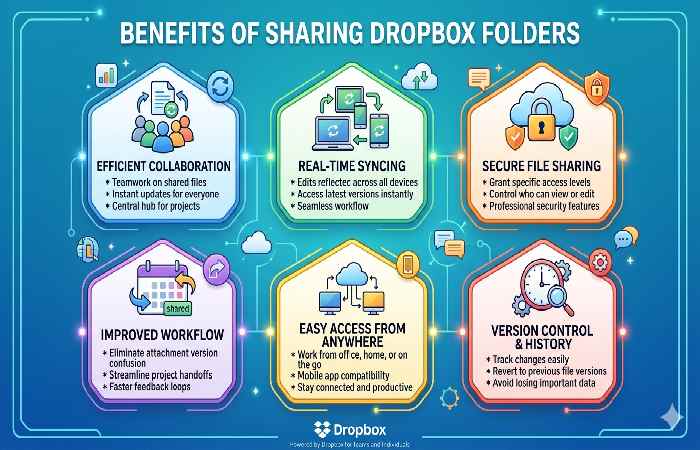
Here are the key benefits explained in depth:
- Real-Time Collaboration
Dropbox allows multiple users to access and work on the same folder simultaneously.
Why it matters:
- Team members can upload, edit, and update files instantly
- Eliminates back-and-forth email attachments
- Keeps everyone on the same page
Example:
A marketing team can collaborate on campaign files without version confusion.
- Easy File Sharing (Even Large Files)
Sharing large files via email is often impossible due to size limits. Dropbox solves this easily.
Advantages:
- Share files of virtually any size
- Send a simple link instead of bulky attachments
- Faster and more reliable delivery
- Centralized File Management
All shared content is stored in one organized location.
Benefits:
- No scattered files across emails or devices
- Easy navigation with folders and subfolders
- Better file organization for teams
- Access from Anywhere, Any Device
Dropbox works across:
- Desktop (Windows, Mac)
- Mobile (Android, iOS)
- Web browsers
Result:
- Access files anytime, anywhere
- Ideal for remote work and travel
- Strong Security and Access Control
Dropbox offers multiple layers of protection:
- Permission controls (view/edit)
- Password-protected links
- Two-factor authentication
Why this is important:
- You control who sees and edits your files
- Reduces risk of unauthorized access
Limitations to Know
While Dropbox is a powerful and reliable file-sharing platform, it’s not without its drawbacks. Understanding these limitations helps you use it more effectively and avoid potential issues.
1. Limited Free Storage
Dropbox’s free plan offers relatively small storage compared to competitors.
What this means:
- You may quickly run out of space
- Not ideal for storing large media files or backups
Tip:
Upgrade to a paid plan or clean up unused files regularly.
2. Advanced Features Require Paid Plans
Many useful features are locked behind premium tiers.
Examples:
- Password-protected links
- Expiration dates for shared links
- Extended version history
Impact:
Free users may face restrictions in security and control.
3. File Size and Upload Limitations
Although Dropbox supports large files, there are still limits depending on how you upload:
- Web uploads have size restrictions
- Slow uploads for very large files on weak internet
4. Requires Stable Internet Connection
Dropbox is cloud-based, meaning:
- No internet = no access (unless files are synced offline)
- Slow internet can delay uploads/downloads
5. Sync Conflicts Can Occur
When multiple users edit the same file at the same time:
- Duplicate files may be created (conflicted copies)
- Version confusion can happen
Tip:
Use clear communication when collaborating on files.
Dropbox Pricing & Competitor Comparison (Country-Wise)
🇺🇸 United States
| Platform | Price (Monthly) | Storage | Link |
| Dropbox | $11.99 | 2TB | https://www.dropbox.com |
| Google Drive | $9.99 | 2TB | https://drive.google.com |
| OneDrive | $6.99 | 1TB | https://onedrive.live.com |
| Box | $10 | 100GB | https://box.com |
🇮🇳 India
| Platform | Price (Monthly) | Storage | Link |
| Dropbox | ₹799 | 2TB | https://www.dropbox.com |
| Google Drive | ₹650 | 2TB | https://drive.google.com |
| OneDrive | ₹489 | 1TB | https://onedrive.live.com |
| iCloud | ₹749 | 2TB | https://icloud.com |
🇬🇧 United Kingdom
| Platform | Price (Monthly) | Storage | Link |
| Dropbox | £9.99 | 2TB | https://www.dropbox.com |
| Google Drive | £7.99 | 2TB | https://drive.google.com |
| OneDrive | £5.99 | 1TB | https://onedrive.live.com |
| Box | £8 | 100GB | https://box.com |
🇨🇦 Canada
| Platform | Price (Monthly) | Storage | Link |
| Dropbox | CAD 12.99 | 2TB | https://www.dropbox.com |
| Google Drive | CAD 12.99 | 2TB | https://drive.google.com |
| OneDrive | CAD 7.99 | 1TB | https://onedrive.live.com |
| Box | CAD 10 | 100GB | https://box.com |
🇦🇺 Australia
| Platform | Price (Monthly) | Storage | Link |
| Dropbox | AUD 15.99 | 2TB | https://www.dropbox.com |
| Google Drive | AUD 12.49 | 2TB | https://drive.google.com |
| OneDrive | AUD 10 | 1TB | https://onedrive.live.com |
| iCloud | AUD 14.99 | 2TB | https://icloud.com |
Advanced Tips for Secure Sharing
- Share the password separately (e.g., via SMS or another app)
2. Set Link Expiration Dates
If you’re on a paid plan, you can set links to expire automatically.
Benefits:
- Temporary access for clients or collaborators
- Reduces risk of long-term exposure
Use case:
- Freelancers sharing project files
- Time-sensitive document access
3. Limit Permissions Strictly
Always follow the principle of least privilege:
- Give View Only access unless editing is required
- Avoid giving edit access to large groups
- Regularly review who has access
Pro Tip:
Too many editors increase the risk of accidental deletion or unwanted changes.
4. Enable Two-Factor Authentication (2FA)
Protect your Dropbox account with 2FA.
How it helps:
- Even if your password is compromised, access is blocked without verification
- Adds strong protection against hacking attempts
5. Monitor File Activity and Access Logs
Dropbox allows you to track:
- Who opened files
- Who edited content
- When changes were made
Why this is critical:
- Detect suspicious activity early
- Maintain accountability in team environments
Real-World Use Cases
For Businesses
- Team collaboration
- Client file sharing
- Document version control
Students
- Group projects
- Notes sharing
- Assignment submissions
For Freelancers
- Deliver client work
- Share portfolios
- Manage revisions
FAQ Section
- Can I share a Dropbox folder without email?
Yes, you can generate a shareable link and send it via any platform.
- Can I control who edits my folder?
Set permissions to “View Only” or “Edit” when sharing.
- Is Dropbox sharing secure?
Yes, especially with added features like passwords and expiration dates.
- Can I stop sharing a folder later?
Yes, you can revoke access anytime from settings.
- What is the file size limit for sharing?
Depends on your plan, but Dropbox supports large file transfers compared to email.
Final Conclusion
Learning how to share your Dropbox folder is a crucial skill for efficient file management and collaboration. With just a few clicks, you can securely share files, control access, and streamline teamwork. By following the steps, best practices, and security tips outlined above, you’ll not only share files effectively but also protect your data and improve productivity.