

Table of Contents
What Are DLL Files? (Dynamic Link Library Explained)
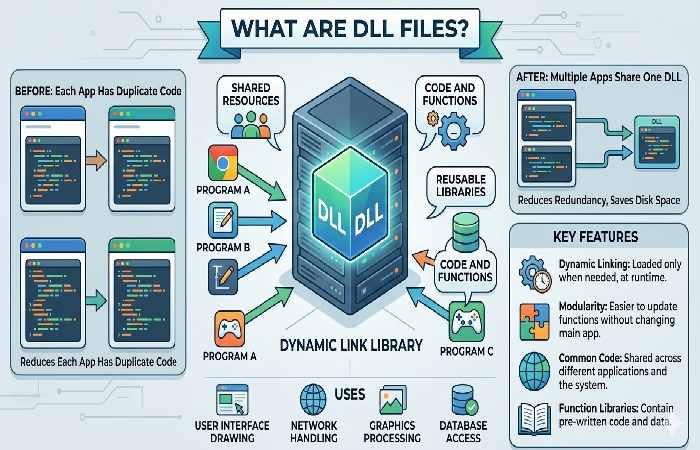
A Dynamic Link Library (DLL) is a file containing code, data, and resources that multiple programs can use simultaneously. Unlike standalone executable files (.exe) that run independently, DLL files serve as shared libraries that applications call upon when they need specific functionality.
Think of a DLL as a specialized toolbox that many different construction workers (programs) can share. Instead of each worker carrying their own complete set of tools, they all access a central toolbox when they need a specific tool. This shared approach saves space, reduces duplication, and ensures everyone uses the same reliable tools.
DLL files typically have a .dll extension, though some use alternatives like .ocx (ActiveX controls), .cpl (Control Panel items), or .drv (device drivers).
A Simple Analogy That Makes Sense
Imagine a city library containing thousands of reference books. Rather than every student purchasing and storing their own copy of each reference book (which would be expensive and wasteful), they visit the library when they need to consult a specific resource.
DLLs work the same way for software: multiple applications “check out” the functions they need from shared DLL files, rather than each application including its own copy of common code. When ten applications need the same mathematical function, they all reference the same DLL instead of carrying ten separate copies of identical code.
How DLLs Differ From EXE Files
While both DLLs and EXE files are executable code, they serve different purposes:
EXE (Executable) Files:
- Can run independently as programs
- Have an entry point (main function) that starts execution
- Users can double-click to launch them
- Designed to operate as standalone applications
DLL (Dynamic Link Library) Files:
- Cannot run on their own—require a host application
- Contain functions and resources other programs call
- Loaded by applications that need their functionality
- Designed for sharing and reusability
You can’t double-click a DLL to “run” it because it’s not a complete program—it’s a collection of functions waiting to be called by applications that need them.
The History Behind DLLs: Why They Were Created
The Problem of Code Duplication in Early Computing
In early computing environments, software developers faced a significant problem: code duplication. Every application that needed to display a window, open a file, or connect to a network included its own copy of that functionality.
This approach created multiple challenges:
Wasted Disk Space: When 50 programs each contained their own copy of identical file-handling code, that code existed 50 times on the hard drive.
Memory Inefficiency: When multiple programs ran simultaneously, each loaded its own copy of common functions into RAM, multiplying memory consumption.
Maintenance Nightmares: Fixing a bug or improving a common function required updating every single application individually, rather than fixing it once in a central location.
Inconsistent Behavior: Different applications implemented similar functions slightly differently, leading to inconsistent user experiences and bugs.
Microsoft’s Solution: Shared Libraries
Microsoft introduced Dynamic Link Libraries with Windows 3.0 in 1990 as an elegant solution to these problems. The concept wasn’t entirely new—Unix systems had used shared libraries since the 1970s—but DLLs became the Windows implementation of this powerful architectural pattern.
The core insight was simple but transformative: separate reusable functionality into shared modules that any application can reference.
Instead of every program including window-drawing code, Microsoft created user32.dll containing all window management functions. Applications simply called functions from this shared library, dramatically reducing duplication.
Evolution From Windows 3.0 to Modern Systems
DLLs have evolved significantly since 1990:
- Windows 3.x era (1990-1995): Basic DLL architecture established, primarily for system functions.
- Windows 95/98 era (1995-2000): Expansion of COM (Component Object Model) using DLLs for object-oriented programming.
- Windows XP era (2001-2008): Introduction of side-by-side assemblies to combat “DLL Hell” versioning conflicts.
- Windows Vista/7 era (2009-2015): Enhanced security features to prevent DLL hijacking attacks.
- Modern Windows (2015-present): Integration with .NET assemblies, improved isolation, container support, and enhanced security mechanisms.
Today’s Windows 11 systems contain thousands of DLL files, from tiny specialized libraries to massive frameworks like the .NET runtime, all working together to power modern applications.
How DLL Files Work: The Technical Process Simplified
Dynamic Linking vs. Static Linking Explained
To understand DLLs, you need to understand the two fundamental approaches to incorporating library code into applications:
Static Linking:
- Library code is copied into the executable file at compile time
- The final .exe file contains everything it needs
- Larger file sizes because every application includes copies of common code
- No runtime dependencies to manage
- Each application uses its own copy in memory
Dynamic Linking (DLLs):
- Library code remains in separate .dll files
- The executable references but doesn’t contain the library code
- Smaller file sizes because common code isn’t duplicated
- Runtime dependency on the DLL file being present
- Multiple applications can share a single copy in memory
Dynamic linking offers significant advantages in most scenarios, which is why it became the dominant model for Windows applications.
The Loading Process: What Happens When You Run a Program
When you double-click an application icon, a sophisticated process unfolds:
- Initial Load:Windows loads the executable file into memory and examines its import table, which lists all the DLLs the application depends on.
- Dependency Resolution:The Windows loader locates each required DLL by searching specific directories in a defined order (application folder, system folders, PATH directories).
- DLL Loading:Each DLL is loaded into memory. The loader checks if the DLL is already loaded by another process; if so, it may share the code portion.
- Address Binding:The loader resolves function addresses so the application knows where to find each function it needs to call.
- Execution Begins:Once all dependencies are satisfied, the application starts running and can call DLL functions as needed.
This entire process typically happens in milliseconds, invisible to the user unless a required DLL is missing or corrupted.
Memory Sharing Architecture
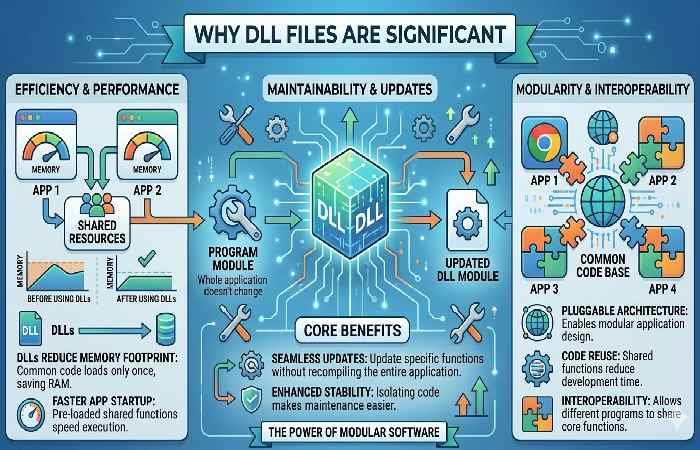
One of the most significant advantages of DLLs is memory efficiency through sharing:
When ten applications all use kernel32.dll (a core Windows library), Windows loads one copy of the code portion into physical memory. Each application gets its own private data space, but they all execute the same shared code.
Without DLLs (Static Linking):
- 10 applications × 500KB of common code = 5,000KB (5MB) of RAM used
With DLLs (Dynamic Linking):
- 1 shared copy × 500KB = 500KB of RAM used
- Memory savings: 4,500KB (90% reduction)
When you’re running dozens or hundreds of applications simultaneously, these savings compound dramatically, enabling your system to run more programs with the same amount of RAM.
Import and Export Mechanisms
DLLs work through a complementary export/import system:
Exports (DLL Side): A DLL “exports” specific functions, making them available to other programs. The DLL contains an export table listing all publicly available functions with their names and addresses.
Imports (Application Side): An application “imports” functions it needs from DLLs. The executable contains an import table listing which DLLs it depends on and which functions it expects to call.
When the application runs, the loader matches imports to exports, creating the connections that allow the application to call DLL functions as if they were part of the application itself.
Why DLL Files Are Significant: Key Benefits
Memory Efficiency and Resource Optimization
In modern computing, memory efficiency directly impacts system performance and user experience. DLLs provide dramatic memory savings through their shared architecture.
Consider a typical Windows 11 system with 50 applications installed. Many of these applications need common functionality: displaying graphics, managing files, establishing network connections, and handling user input. Without DLLs, each application would include its own copy of this code.
Real-World Impact:
- System DLLs like kernel32.dll, user32.dll, and gdi32.dll are used by virtually every Windows application
- A single copy of these core libraries serves dozens of running applications simultaneously
- Modern applications using the .NET Framework share hundreds of megabytes of framework DLLs
- Gaming engines share physics libraries, rendering engines, and audio processors across multiple titles
The memory savings enable your computer to run more applications simultaneously without slowdowns or crashes.
Code Reusability Across Applications
Software development thrives on the principle of “write once, use everywhere.” DLLs are the practical implementation of this principle.
When Microsoft or a software company creates a useful function—let’s say, a function that compresses images—they package it in a DLL. Every application the company creates can immediately use that function without rewriting it.
Benefits of Reusability:
- Reduced Development Time: Developers don’t reinvent the wheel for common operations
- Consistent Behavior: All applications using the same DLL behave identically for that functionality
- Quality Improvement: Extensive testing and debugging of shared code benefits all applications
- Expertise Leverage: Specialized functionality (encryption, compression, networking) can be built by experts and used by everyone
This reusability extends beyond single companies. Third-party DLLs enable developers worldwide to incorporate sophisticated functionality without building it themselves.
Simplified Software Updates and Maintenance
DLLs revolutionize software maintenance by enabling centralized updates.
Traditional Monolithic Applications: Fixing a bug requires updating every application containing the buggy code. If 100 applications all contain the same security vulnerability, you need 100 separate updates.
DLL-Based Applications: Fixing the same bug in a shared DLL immediately fixes it for all applications using that DLL. One update solves the problem system-wide.
Real-World Example: When Microsoft discovers a security vulnerability in a common Windows API, they can fix it by updating a single system DLL through Windows Update. That one update instantly protects every application on the system that uses those functions—potentially thousands of applications with zero effort from their developers.
This centralized maintenance is especially critical for security patches, where rapid, comprehensive updates can prevent widespread exploitation of vulnerabilities.
Modular Application Architecture
DLLs enable developers to structure large applications as collections of specialized modules rather than monolithic blocks of code.
A complex application like Microsoft Office or Adobe Photoshop might consist of:
- Core application executable
- User interface DLL
- Document processing DLL
- File format import/export DLLs
- Rendering engine DLL
- Networking/cloud sync DLL
- Plugin/extension DLLs
Advantages of Modularity:
- Team Development: Different teams can work on separate DLL modules simultaneously
- Selective Updates: Update specific features without touching the entire application
- Optional Components: Load advanced features only when users need them
- Easier Testing: Test and debug individual modules in isolation
- Flexible Deployment: Include or exclude components based on licensing or user needs
This modular approach scales from small applications to massive enterprise systems.
Language Independence and Flexibility
DLLs provide a language-agnostic interface, enabling code written in different programming languages to work together seamlessly.
A DLL created in C++ can be used by applications written in C#, Visual Basic, Python, or any language supporting Windows API calls. This interoperability offers tremendous flexibility:
- Organizations can leverage existing code investments regardless of the language
- Developers can choose the best language for each component
- Legacy code can be wrapped in DLLs and accessed by modern applications
- Third-party libraries work regardless of what language you’re using
This independence from specific programming languages has contributed significantly to the Windows platform’s longevity and versatility.
Real-World Applications: Where DLLs Matter Today
Operating System Components
Windows itself is fundamentally built on DLLs. The core operating system consists of numerous DLLs providing essential services:
- kernel32.dll: Core OS functions (memory management, file operations, process control)
- user32.dll: User interface functions (windows, menus, message handling)
- gdi32.dll: Graphics Device Interface (drawing, fonts, rendering)
- ntdll.dll: Native API functions (lowest-level system calls)
- advapi32.dll: Advanced services (registry, security, event logging)
Every Windows application you run relies on these foundational DLLs. They’re the invisible infrastructure that makes Windows applications work consistently.
Software Development Frameworks (.NET, COM, etc.)
Modern development frameworks are built almost entirely from DLLs:
.NET Framework and .NET Core: Contains hundreds of DLLs providing everything from basic data types to web services, database connectivity, machine learning, and cloud integration. Developers building .NET applications reference these framework DLLs extensively.
COM (Component Object Model): Uses DLLs to implement reusable software components. ActiveX controls, browser plugins, and Office automation all rely on COM DLLs.
DirectX: Gaming and multimedia applications use DirectX DLLs (d3d11.dll, xinput1_4.dll) for graphics rendering, audio processing, and input handling.
Video Games and Game Engines
The gaming industry is one of the heaviest users of DLL technology:
Game Engines: Unity, Unreal Engine, and other game engines use DLLs to modularize physics engines, rendering systems, audio processors, and AI components.
Modding Communities: Many games support mods through DLL plugins that add new content or modify behavior without changing the core game.
Performance Libraries: Games use specialized DLLs for performance-critical operations like texture compression, physics simulation, and network code.
Graphics APIs: DirectX and Vulkan graphics APIs are implemented as DLLs, enabling games to leverage GPU hardware acceleration.
Enterprise Applications and Business Software
Business software extensively uses DLLs for:
- Database Connectivity: ODBC and database driver DLLs connect applications to SQL Server, Oracle, MySQL, and other databases
- Security and Encryption: Cryptographic DLLs handle secure communications and data protection
- Document Processing: PDF generation, Office document handling, and report generation DLLs
- Business Logic Components: Reusable modules for calculations, validations, and workflows
Large enterprises often develop proprietary DLLs containing their business rules and processes, which multiple applications access for consistent behavior.
Device Drivers and Hardware Interfaces
Device drivers—the software that enables Windows to communicate with hardware—are often implemented as specialized DLLs:
- Printer drivers
- Network adapter drivers
- Graphics card drivers
- Audio device drivers
- USB device drivers
These driver DLLs translate between the hardware’s native language and the Windows operating system, enabling plug-and-play functionality.
Browser Extensions and Plugins
Web browsers use DLLs extensively for extensions and plugins:
- Adobe Flash Player (historically) used DLL plugins
- PDF viewers integrate via DLLs
- Password managers use DLLs for browser integration
- Ad blockers and privacy tools operate through DLL components
Even though modern browsers increasingly use different architectures, DLL-based extensions remain common in enterprise environments.
Common DLL Problems and How to Fix Them
Understanding “Missing DLL” Errors
The dreaded “missing DLL” error occurs when an application tries to load a DLL file that cannot be found. Common error messages include:
- “The program can’t start because [filename].dll is missing from your computer”
- “Unable to locate DLL”
- “This application failed to start because [filename].dll was not found”
Why These Errors Happen:
- Software Installation Issues: The application installer failed to include or register required DLLs
- Accidental Deletion: Users or cleanup utilities deleted DLL files thinking they were unnecessary
- Corruption: Disk errors or system crashes corrupted the DLL file
- Malware: Viruses infected or removed DLL files
- Version Conflicts: An application needs a specific DLL version that isn’t installed
DLL Hell: Version Conflicts Explained
“DLL Hell” refers to the nightmare scenario where multiple applications require different versions of the same DLL.
The Classic Problem:
- Application A installs version 1.0 of shared.dll
- Application B requires version 2.0 and overwrites version 1.0
- Application A now crashes because it finds version 2.0, which has incompatible changes
Microsoft’s Solutions:
- Side-by-Side Assemblies: Windows can maintain multiple versions of the same DLL simultaneously
- Application-Local DLLs: Applications can include their own private copies of DLLs
- Manifest Files: Applications specify exactly which DLL version they require
- .NET Strong Naming: .NET assemblies use cryptographic signatures and version numbers to prevent conflicts
Modern Windows systems handle versioning much better than earlier versions, though conflicts can still occasionally occur.
Step-by-Step Troubleshooting Guide
When you encounter a DLL error, follow this systematic approach:
1: Restart Your Computer Many temporary issues resolve with a simple restart that clears corrupted memory states.
2: Check the Recycle Bin If the DLL was accidentally deleted, it may still be in the recycle bin where you can restore it.
3: Reinstall the Application The most reliable fix is reinstalling the application that’s showing the error. The installer will restore missing DLLs.
4: Run System File Checker Open Command Prompt as administrator and run:
sfc /scannow
This scans and repairs corrupted system DLLs.
Step 5: Update Windows Many DLLs are part of Windows components. Running Windows Update may install missing or updated DLLs.
Step 6: Install Visual C++ Redistributables Many applications require Microsoft Visual C++ runtime DLLs. Download and install the latest Visual C++ Redistributable packages from Microsoft’s website.
Step 7: Check for Malware Run a full system scan with Windows Defender or your antivirus software to rule out malware infection.
Safe Methods to Resolve DLL Issues
DO:
- Reinstall the affected application
- Use Windows Update and official Microsoft tools
- Download redistributables from microsoft.com
- Use manufacturer-provided installers
- Run system diagnostics (sfc, DISM)
DON’T:
- Download individual DLL files from third-party websites
- Copy DLLs from other computers
- Replace system DLLs manually without understanding the implications
- Use automated “DLL fixer” tools from unknown sources
- Ignore persistent DLL errors (they may indicate deeper problems)
Why Downloading DLLs is Dangerous: Third-party DLL download sites are common sources of malware. Attackers know users search for “download [filename].dll” and create malicious sites ranking highly for these searches. The “DLL” you download may contain viruses, trojans, or spyware.
When to Seek Professional Help
Consider professional assistance if:
- Errors persist after following troubleshooting steps
- Multiple applications are affected simultaneously
- System performance has degraded significantly
- You suspect malware infection
- Critical business applications are impacted
- You’re uncomfortable with technical troubleshooting
IT professionals have specialized tools and diagnostic procedures for complex DLL issues.
DLLs in Modern Software Development (2025-2026)
Creating DLLs: Developer Perspective
Modern developers create DLLs using various tools and languages:
C/C++ Development: Visual Studio and other IDEs provide project templates for DLL creation. Developers mark functions for export using compiler directives, compile the code, and generate the .dll file.
C# and .NET: .NET assemblies are technically DLLs but with enhanced metadata. Creating them is straightforward—simply create a Class Library project and compile.
Python: Python can both create and use DLLs through tools like ctypes and cffi for interoperability with C/C++ code.
Best Practices 2025-2026:
- Version your DLLs properly using semantic versioning
- Document your APIs thoroughly
- Provide both 32-bit and 64-bit versions when necessary
- Sign your DLLs with authenticode certificates
- Use dependency injection patterns for flexibility
- Test across different Windows versions
DLLs in Cloud and Container Environments
Cloud computing and containerization have changed how developers think about DLLs:
Container Considerations: Docker containers for Windows applications include necessary DLLs within the container image, ensuring consistency across environments. This “batteries included” approach reduces dependency issues but increases image sizes.
Microservices Architecture: Modern microservices often minimize DLL dependencies, preferring self-contained executables. However, common frameworks (like .NET) still use DLLs extensively within each service.
Cloud-Native Development: Azure Functions and AWS Lambda for Windows still rely on DLLs for .NET runtime functionality, though much of this complexity is abstracted from developers.
Cross-Platform Considerations
.NET Core and .NET 5+ enable true cross-platform development where the same codebase compiles to:
- .dll files on Windows
- .so (shared object) files on Linux
- .dylib (dynamic library) files on macOS
Developers write platform-agnostic code, and the build system generates the appropriate binary format for each target platform.
Best Practices for DLL Versioning
Proper versioning prevents “DLL Hell” and ensures compatibility:
Semantic Versioning (SemVer): Use MAJOR.MINOR.PATCH format where:
- MAJOR: Breaking changes (incompatible API modifications)
- MINOR: New features (backward-compatible additions)
- PATCH: Bug fixes (backward-compatible repairs)
Assembly Versioning (.NET): .NET assemblies include multiple version numbers:
- Assembly Version: Used for strong naming and binding
- File Version: For informational purposes
- Product Version: Marketing version number
Compatibility Strategies:
- Maintain backward compatibility whenever possible
- Deprecate features before removing them
- Provide migration guides for breaking changes
- Use compiler directives to support multiple versions
DLL Alternatives and Cross-Platform Equivalents
While DLLs are Windows-specific, the concept of shared libraries is universal:
Linux Shared Objects (.so): Linux uses .so files functioning identically to Windows DLLs. They provide code sharing, memory efficiency, and modularity. The Linux loader resolves dependencies similarly to Windows.
macOS Dynamic Libraries (.dylib): macOS uses .dylib files (and older .bundle formats) as its shared library implementation. Apple’s Mach-O executable format is analogous to Windows PE format.
Universal Concept: All modern operating systems implement some form of shared library architecture because the benefits—memory efficiency, code reuse, and modular design—are universally valuable.
Cross-Platform Development: Modern development frameworks abstract these differences. When you build a cross-platform application with .NET, Qt, or Electron, the build system automatically generates the correct shared library format for each target platform.
Emerging Alternatives:
- WebAssembly (WASM): Enables running compiled code in browsers, potentially reducing reliance on platform-specific libraries
- Static Linking Revival: Some developers favor static linking for simpler deployment despite larger file sizes
- Package Managers: Tools like vcpkg and Conan help manage dependencies, reducing DLL management complexity
Frequently Asked Questions About DLL Files
Q: Can I delete DLL files to free up disk space?
No, you should never manually delete DLL files. Even if a DLL appears unused, it may be required by applications you haven’t run recently or by system processes. Deleting DLLs can cause application crashes or prevent Windows from functioning properly. Use Windows’ built-in Disk Cleanup tool or Settings > Storage to safely free up space—it knows which files are safe to remove.
Q: Is it safe to download DLL files from the internet when I get a “missing DLL” error?
Generally, no. Downloading individual DLL files from third-party websites is dangerous because these files may contain malware. Instead, reinstall the application showing the error, run Windows Update, install official redistributable packages from Microsoft, or use the System File Checker tool. These methods safely resolve DLL issues without security risks.
Q: What’s the difference between 32-bit and 64-bit DLLs?
32-bit DLLs (compiled for x86 architecture) can only be loaded by 32-bit applications, while 64-bit DLLs (compiled for x64 architecture) can only be loaded by 64-bit applications. Windows 64-bit systems maintain separate directories for each: C:\Windows\System32 contains 64-bit DLLs, while C:\Windows\SysWOW64 (confusingly) contains 32-bit DLLs. Applications must use DLLs matching their architecture.
Q: Why do some games and applications include their own copies of DLLs that Windows already has?
Applications include private copies of DLLs to ensure they always use the specific version they were tested with, avoiding compatibility issues. This practice is called “application-local deployment” or “private assemblies.” While it uses more disk space, it prevents the application from breaking if Windows or other software updates the system-wide version of that DLL.
Conclusion: The Enduring Relevance of DLLs
Dynamic Link Libraries represent one of the most elegant and enduring architectural patterns in modern computing. For over three decades, DLLs have enabled:
- Efficient Memory Usage that allows systems to run dozens of applications simultaneously
- Code Reusability that accelerates development and ensures consistent behavior
- Simplified Maintenance through centralized updates benefiting all applications
- Modular Design that scales from simple tools to complex enterprise systems
- Flexible Architecture supporting plugins, extensions, and evolving functionality
Despite the evolution of computing—from desktop PCs to cloud services, from monolithic applications to microservices. The fundamental advantages of shared libraries remain compelling. Even as development practices evolve, DLLs continue serving as the backbone of Windows software architecture.